How to Listen to Music Together Online (Free, In Sync)
GlassChat Team · 2026-11-04
You and your friends want to hear the same song at the same moment. It sounds simple. Then someone counts "3, 2, 1, play," one person's track starts half a second late, another person's buffers, and by the chorus everybody is in a slightly different place.
This guide covers how to listen to music together online so it actually stays in sync. It works for friends in different cities, a study group, or a community that wants a shared radio hour. It's free, it runs in your browser, and nobody needs to install anything.
Why "press play at the same time" never works
Every device starts a song at a slightly different time. The difference comes from network speed, how fast the audio loads, and how fast each person's thumb is. Even a perfect start drifts: a phone that stutters for half a second while switching apps is now half a second behind, and it stays behind.
The common workarounds each break somewhere:
- Counting down and pressing play. You're out of sync by the first chorus, and anyone who joins late starts from zero.
- Screen-sharing your audio on a call. The sound is compressed like a voice, it competes with people talking, and it all comes from one person's computer.
- Playing music into your microphone. Everyone hears it through your mic, at voice quality, with your room noise.
Real listen-together needs one thing these don't have: a single shared clock that every device follows.
Two ways to listen together in GlassChat
GlassChat has listen-together built in, in two places:
- In a group call. You're already talking, and you want music under the conversation.
- In a community music channel. It stays open, people drop in and out, and the music keeps going.
Both use the same shared queue and the same clock, so the sync works the same way in each.
1. Listen together in a group voice or video call
- Start a group voice or video call from any group chat.
- Tap the music note button in the call controls. Its label is Listen together.
- Search the library and pick a song. It starts for everyone in the call, at the same moment.
- Keep adding songs to build a shared queue.
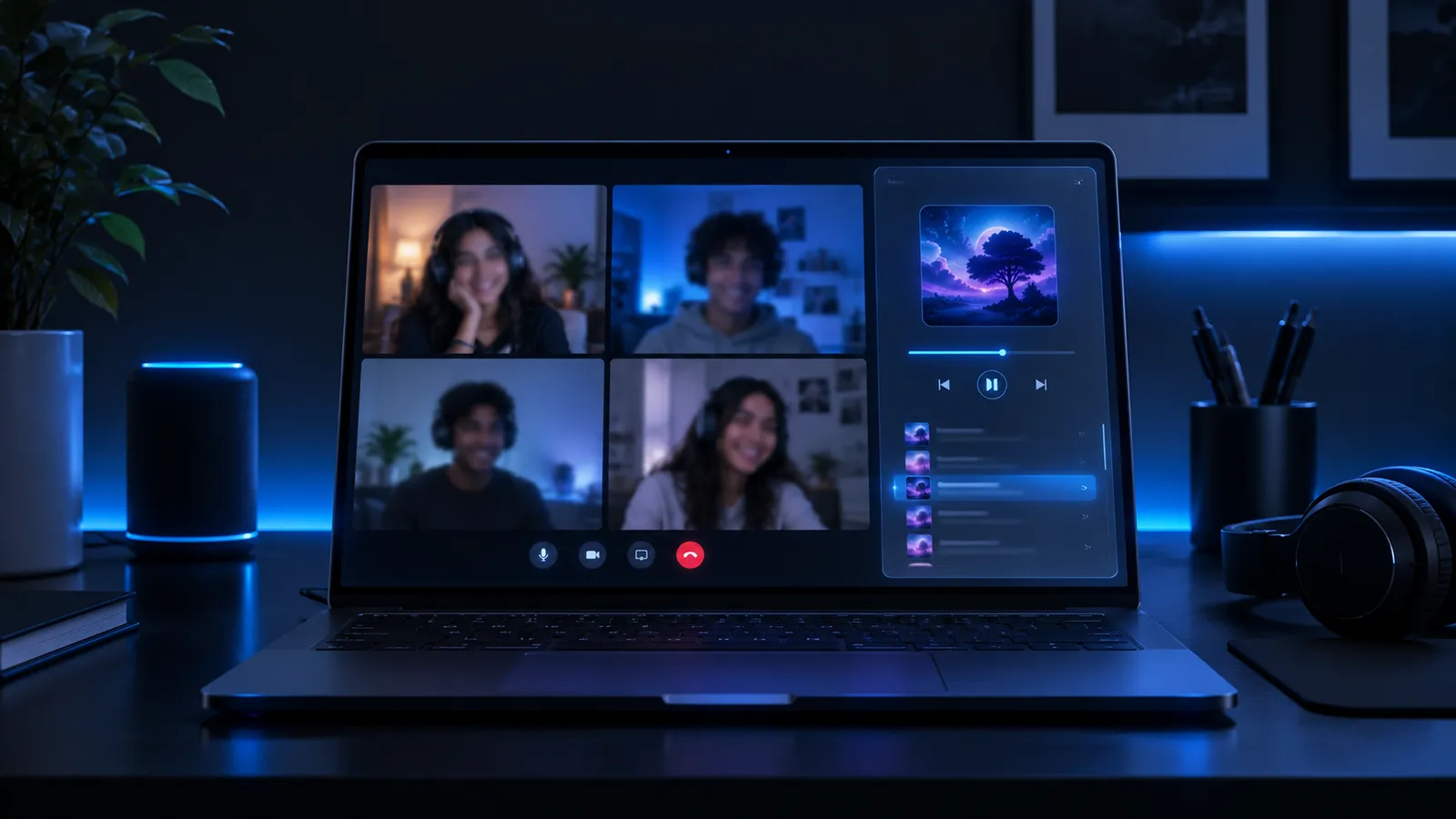
There is no host. Anyone in the call can play, pause, skip, seek or add a song, and the change happens for everyone at once. If you scrub to the bridge, everybody jumps to the bridge.
Music in a call starts at a lower volume than normal, and it dips automatically while someone else is talking. You can always hear each other over the song, and each person sets their own music volume.
2. Run a music channel in your community
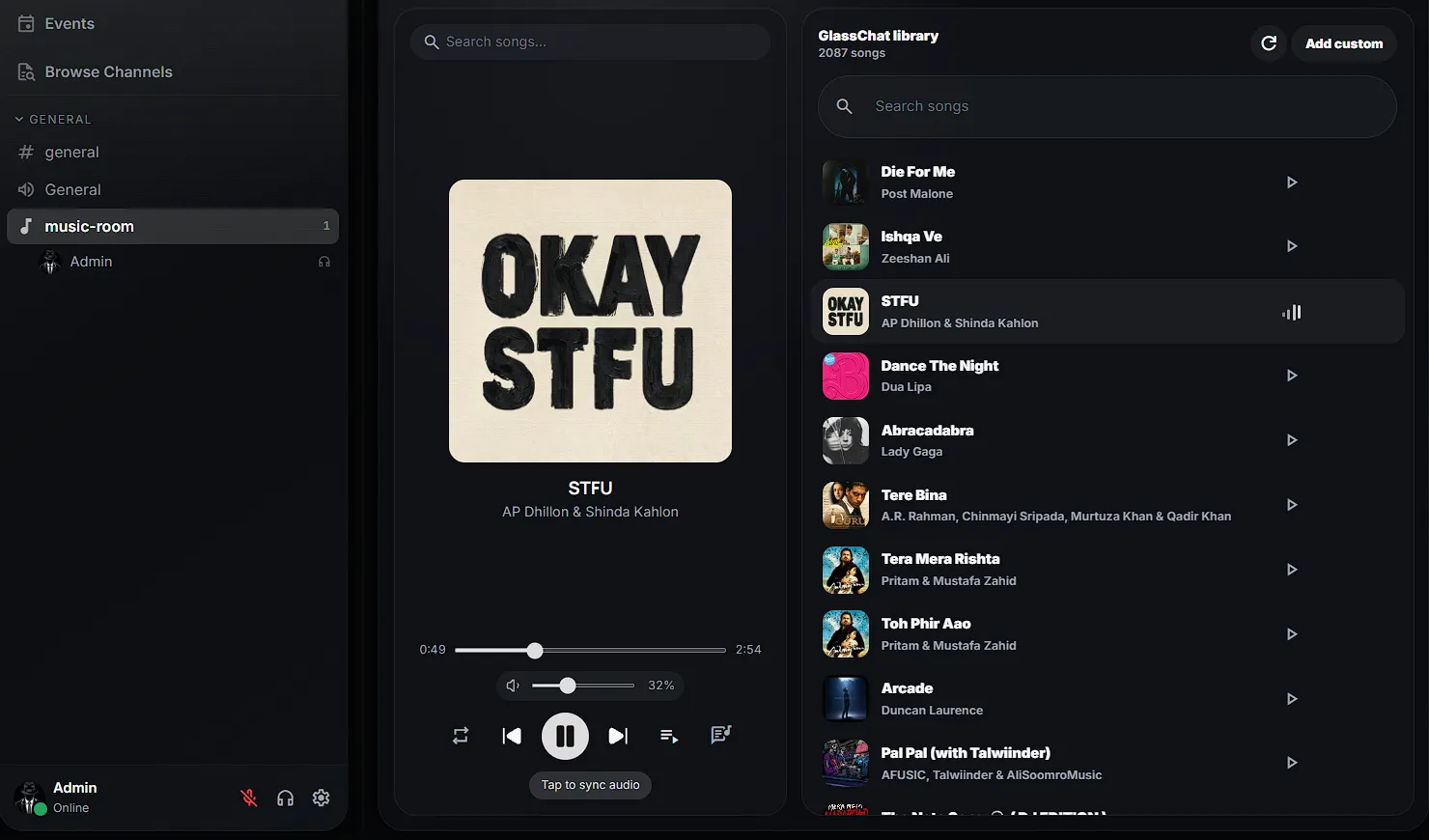
If you run a community, add a channel and choose the Music type. Its description in the app is "Listen to a shared queue."
A music channel is a room that stays open. Anyone who opens it hears whatever is playing right now, from the right spot, and the sidebar shows who is in the room listening. It works well for:
- a listening party for an album release
- a study or focus room where the music never stops
- a weekly community radio hour, where members take turns queuing songs
How the sync works
This part is why it stays together when the countdown method falls apart.
The room keeps one clock, not one stream. The server doesn't send audio to everyone. It keeps a small record for each room: which song, whether it's playing, where it was, and when it was there. Every device works out the current position from that record, so everyone arrives at the same second of the song.
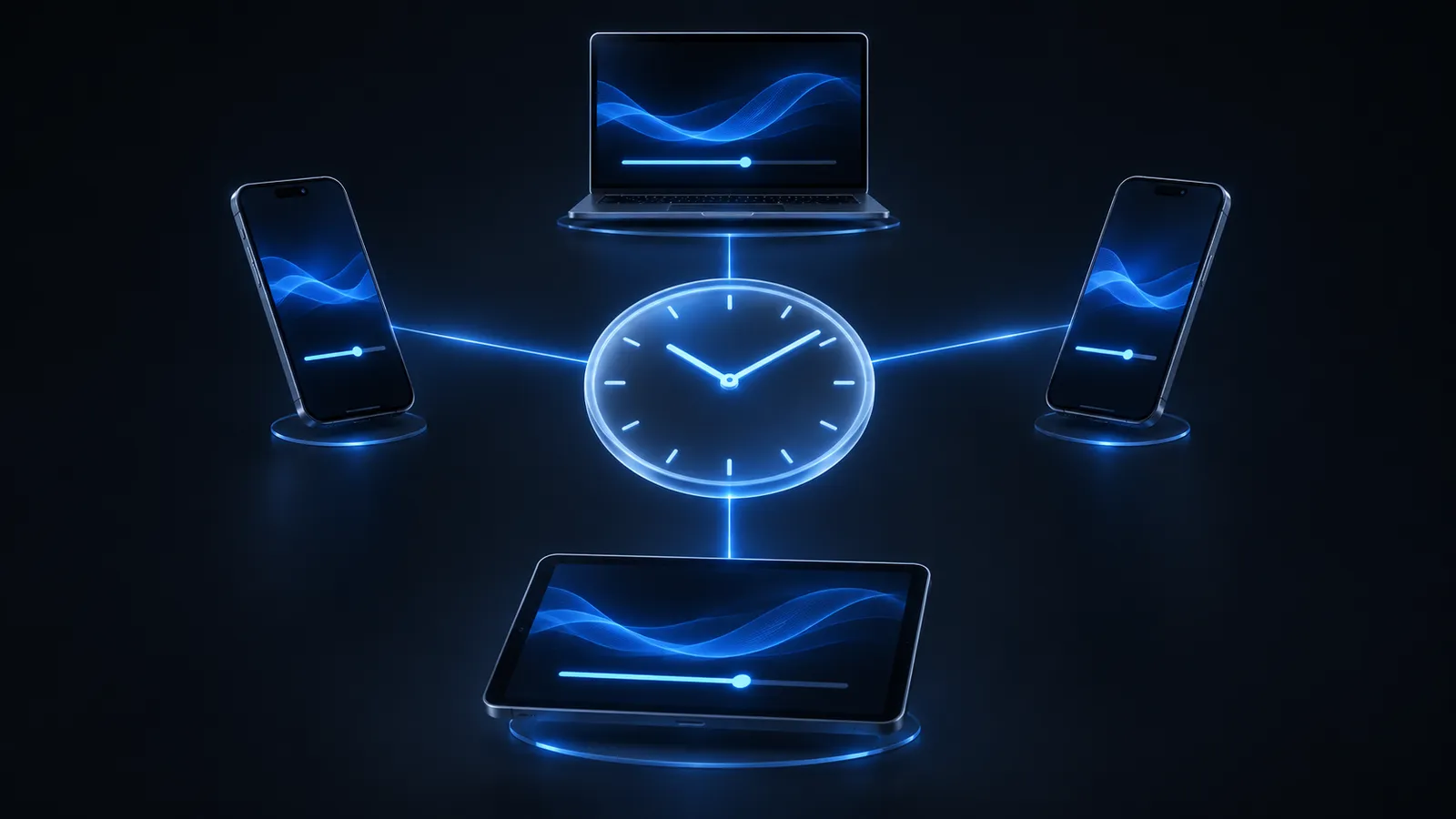
That design gives you three things:
- Late joiners land in the right place. Walk in twenty minutes late and you hear the song where the room is, not from the beginning.
- Drift gets corrected on its own. If a phone falls behind, for example after a slow connection or a backgrounded app, GlassChat notices once it's more than about two seconds off and snaps it back. Smaller wobbles are left alone, so the music doesn't stutter.
- Everyone controls the same thing. Pressing pause doesn't pause your copy. It pauses the room, and every device follows.
Good to know before you start
GlassChat is honest about what this is, so here's what to expect:
- The music comes from the GlassChat library. You pick songs from GlassChat's own catalog. Music channels can also have the community's own tracks. It is not a remote control for your Spotify or Apple Music account.
- It's for group calls and music channels. Listen together is in group voice and video calls and in community music channels, not in one-to-one calls.
- You may need one tap. Browsers don't let a page start playing audio by itself. If yours blocks it, you'll see Tap to sync audio. One tap and you're in, at the room's current position.
- Lyrics follow along. On songs that have synced lyrics, open the lyrics view and they scroll with the music. They're in sync for everyone, too.
Ideas for listening together
- Long-distance friends or partners. Put a group call on in the background while you cook or work and share a queue, like being in the same room.
- Album drops. Open a community music channel at release time and hear it together, track by track, with the chat going alongside.
- Study sessions. A focus playlist in a music channel that anyone can drop into, with no talking required.
- "Pass the aux" night. Everyone in the call takes a turn adding a song to the queue.
Frequently asked questions
Is it free to listen to music together on GlassChat?
Yes. GlassChat is free during the preview, and listen together is included.
Do my friends need to download an app?
No. GlassChat runs in any modern browser on a phone or a computer. You can also install it to your home screen or desktop if you'd like an app icon.
How many people can listen at once?
Everyone in the group call, or everyone who opens the music channel, hears the same thing. The room doesn't change for more listeners: each device follows the same clock.
What happens if my internet drops for a moment?
When you reconnect, your player catches up to where the room is now. You don't rewind everyone else, and you don't start the song over.
Start listening together
Create a free GlassChat account, start a group call with your friends, and tap the music note. Or open a music channel in your community and leave it running.
Same song. Same second. Everyone.